





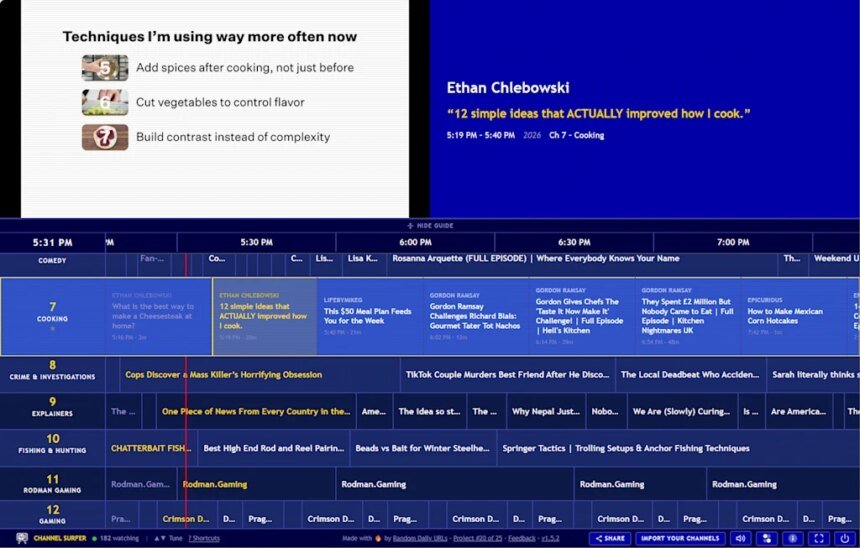

There are more than 20 billion things to watch on YouTube, but sometimes that endless choice can feel constraining.
It’s all too easy, for instance, to get trapped inside an algorithmic bubble that keeps stuffing you with more of the same thing. And that’s before you get sidetracked looking at comments, descriptions, and sidebar recommendations.
Fortunately, a new tool makes watching YouTube feel more like watching old-school TV—with a grid-based channel guide to flip through and minimal distractions.
This tip originally appeared in the free Cool Tools newsletter from The Intelligence. Get the next issue in your inbox and get ready to discover all sorts of awesome tech treasures!
YouTube, cable-style
To bring the classic channel-flipping experience to YouTube, check out a new tool called Channel Surfer.
➜ Channel Surfer is a free website that aggregates YouTube videos into dozens of round-the-clock streaming stations.
⌚ It takes all of two seconds to visit the channelsurfer.tv website and start watching something.
And the site is free to use—with no subscriptions and no ads other than what YouTube itself shows.
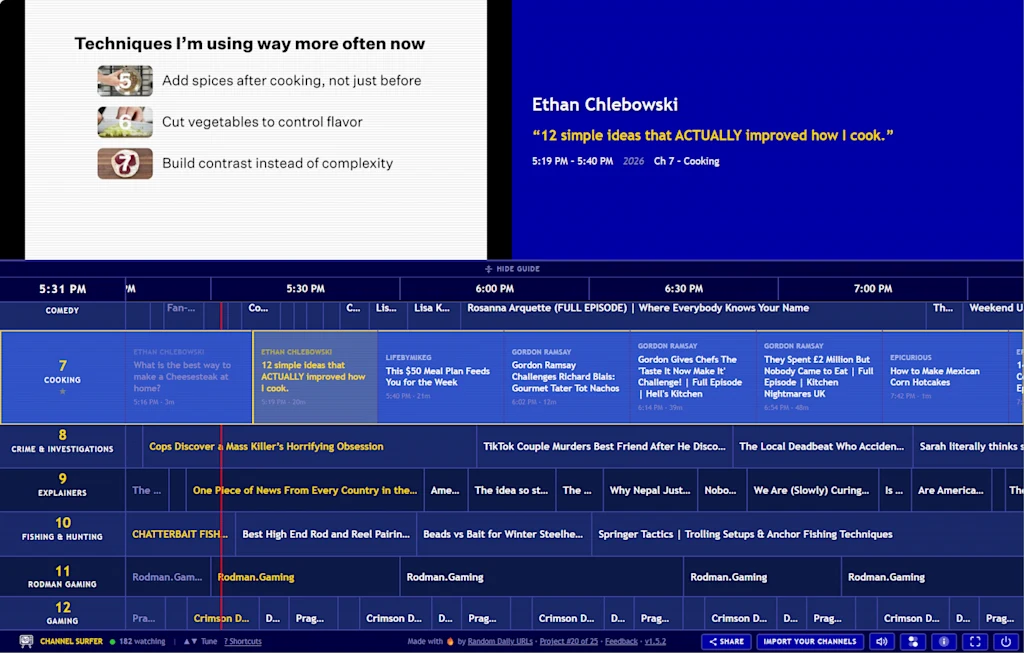
✅ Once you’ve loaded the page (and clicked past the delightful static fade-in effect), just scroll through the grid guide and click on a channel number to start playing it.
Channel Surfer currently offers 42 preset channels, covering topics like food, travel, world news, and music. Programming is arranged 24 hours in advance, and anyone who’s tuned in to a channel will be watching the same thing, just like on cable.
(As an aside, this is a lot like the free streaming service Pluto TV in its early years, before it started licensing full TV episodes from studios. If you miss that version of Pluto, Channel Surfer scratches the same itch.)
💡Channel Surfer can also create additional stations from your own personal YouTube subscriptions, with a caveat: You’ll need to provide an email address, which the creator will use to email you about his other coding projects.
If you’re okay with that, it’s easiest to get going on a desktop computer: Just hit the “Import Your Channels” button, enter your email, then drag the “Channel Surfer” button to your browser’s bookmarks bar. Click that button while viewing your subscriptions page on YouTube, and you’ll get a specially formatted JSON file to copy and paste back into the Channel Surfer site. Then, you’ll see a bunch of extra channels at the bottom of the guide.
🧠 Some other handy features to be aware of:
- Click the star icon on any channel to mark it a favorite. You can then enable a setting to show just your favorites in the guide.
- If you’re viewing the site from a computer, you can flip through channels with your keyboard’s up-down arrow keys.
- Press F to hide the guide and play a channel in full-screen mode.
- Press M to mute the audio at any time, or click the speaker icon at the bottom of the screen to adjust the volume.
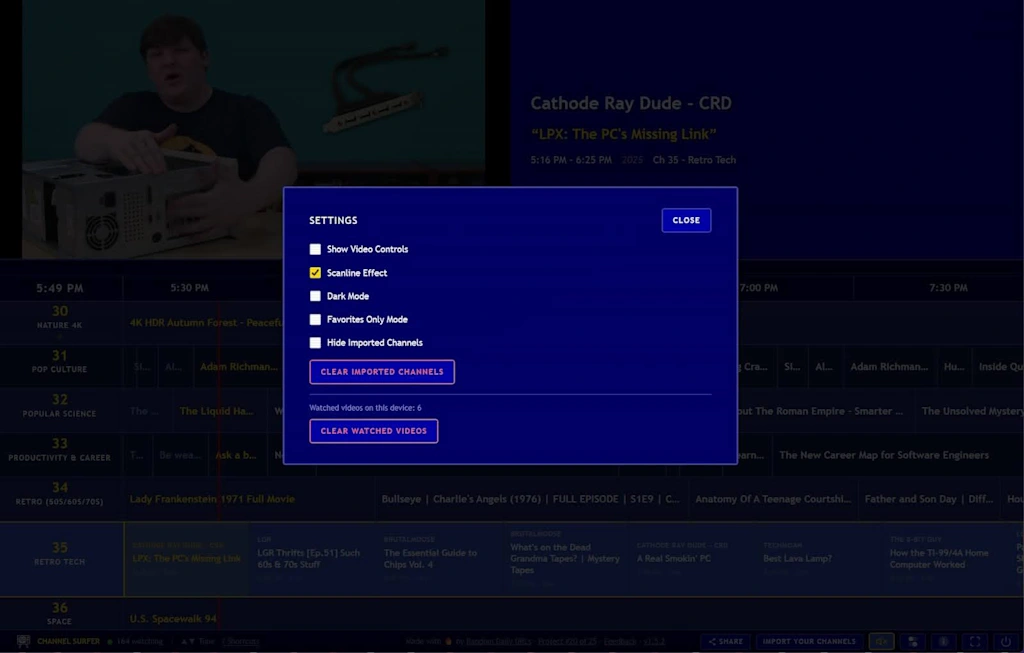
- Press O or the settings icon for some additional options. You can show YouTube’s player controls (for instance, to enable captions), disable the retro scanline effect, enable a dark mode, or hide your imported channels.
- If you forget the keyboard shortcuts, hit the Shortcuts button or press ? on your keyboard.
Too bad there’s no actual TV version of Channel Surfer, though the developer, Steven Irby, told TechCrunch that he’d love to build one.
☝️ One last thing: When you’re finished watching Channel Surfer, you could just close the browser tab like any other. But I suggest clicking the little power button at the bottom-right corner of the screen first—for maximum experience-ending satisfaction.
- Channel Surfer is available on the web, on any device, at channelsurfer.tv.
- It’s free to use, with no subscriptions.
- Channel Surfer’s privacy policy says it only collects analytics on how people use the site. It doesn’t collect personal data or use tracking cookies, and it only collects your email if you decide to use the channel import feature.
Treat yourself to all sorts of life-enhancing excellence like this with the free Cool Tools newsletter—starting with an instant introduction to an incredible audio app that’ll tune up your days in delightful ways.

